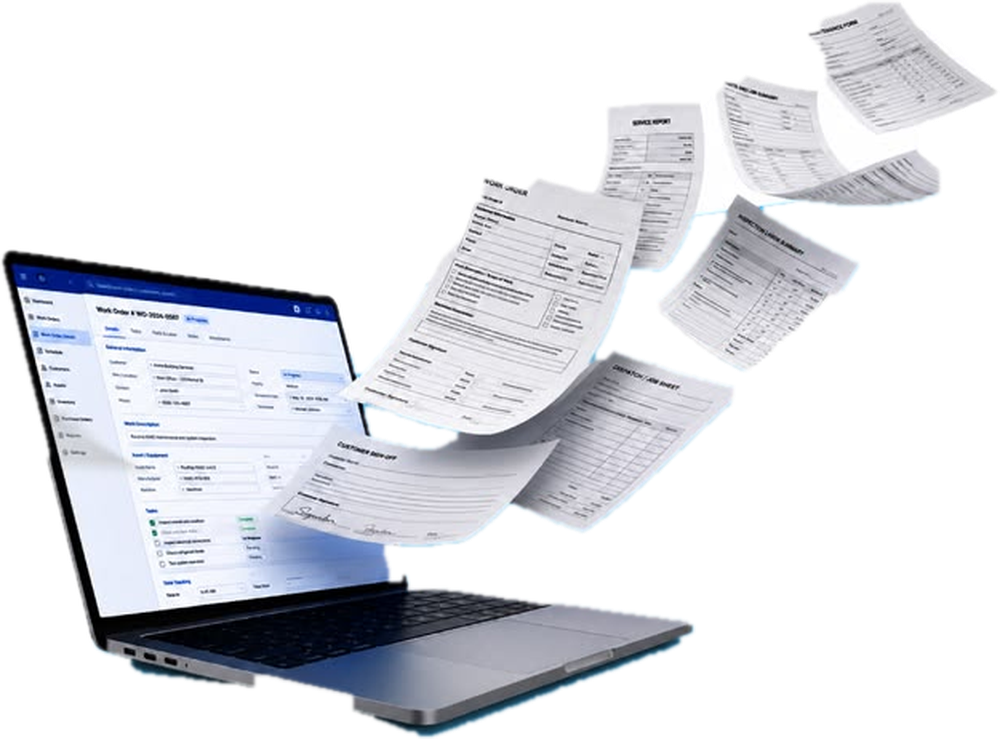
A Web-Based Records Management and Document Tracking System
New here? Learn RecordsHub in five minutesYour menu looks a little different depending on who you are. Choose the one that fits you.
Use the email and password given to you by the Administrator. If you forget your password, choose Forgot Password and type your email. A 6-digit code is sent to it.
Log In Email and passwordGive it a clear title, pick the category, choose the office it is for, then attach your file. You can choose several files at once; they are combined into one PDF in the order you set.
Documents New DocumentAfter you save, the document gets a tracking number such as RU-2026-10-009. Its status starts as Awaiting Stamp, or For Approval if the category needs approvers first. Typed something and the power went out? The form offers to restore your draft.
Open the document to see Currently with, who has it and since when. The bell tells you when something changes. Click View Tracking History for the full trail.
Documents Click the document Tracking HistoryUse Request a copy for documents of other offices, or Request Certified True Copy on a stamped document. Watch your requests under My requests.
Documents Request a copy / My requestsDocuments waiting for you appear here, with a red number in the menu. A document stays hidden until it is your turn; you will not see it earlier.
For ApprovalPress View to open the file and check the details: title, category, sender and the file itself.
Approve passes it to the next approver. Decline needs a short reason, and sends it back to the sender, who can fix it and send it again.
When every approver has agreed, the sending office forwards the document to Records for stamping. You can still see what happened in its history.
New submissions wait in the review queue. Press Receive & Stamp. The stamp carries the date, the time and your name, filled in by the system. For a hard copy, scan it and attach the scan here; several scans become one PDF.
Approvals Receive & StampForward sends it to one office. Release is the final step to one or more offices. The system asks you to confirm first, and says plainly that a release cannot be taken back.
Documents Row menu Forward / ReleaseOffices ask to view, download, print or get a certified copy. Approve or decline. For a Certified True Copy, tick that you checked the original before approving.
Access Requests PendingClose the school year in Archives, restore files when someone needs them, and check the Monitoring Record and Retrieval Log. The Administrator manages backups in Settings.
Archives · Monitoring Record · Retrieval LogThe same job the logbook did, only faster and with nothing left to chance.
Every document has a tracking number, and every move is written down: who had it, and since when.
Approvers act one after another. The next person sees it only when it is their turn.
Other offices open a document in view-only mode. Confidential files are encrypted, and every opening is recorded.
A Certified True Copy carries a QR code. Anyone can scan it to confirm the copy is real.
Every document follows the same road, and every stop is recorded, so nothing gets lost and you always know who has it.
Upload the file and fill in a few details. You get a tracking number right away.
If the category needs it, approvers act one after the other. Only when all agree does it move on.
Records receives it and stamps the date, time and name on the document.
The document goes to the office that needs it, and that office is notified.
The document is completed and later archived. The full history stays on record.
Open any topic. Each one takes less than a minute to read.
Click the document in Documents. The Currently with card shows the office holding it and since when. View Tracking History lists every step. The bell at the top tells you about changes, and new items are highlighted until you open them.
Open the row menu of the document in Documents.
Tick Mark as Confidential Document when you create it. The file is encrypted, and every time it is forwarded or released you must confirm the recipient is authorized. The office that created it is told whenever someone opens it. If it reaches the wrong person, use Report an incident in the row menu so the Records Unit can act.
in total for one upload. PDF, Word, JPG and PNG. Scan at about 200 dpi to stay well under it.
Offices submit electronically. If you only have paper, bring it to the Records Unit. They scan it and encode it for you.
The bell shows what needs you: new documents, approvals, decisions on your requests and replies. Click one to jump straight to it.
Finished documents are archived, not erased. Old files can be restored when they are needed again.